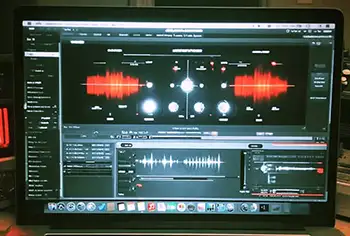
HOW TO: Advanced Drum Editing In Pro Tools
Nail The Mix Staff
Perfectly grid-aligned drums are the foundation of modern metal. But let’s face it, locking every single hit to a rigid metronome can sometimes suck the life right out of a killer performance. What do you do with that one incredible drum take that was tracked without a click, or a performance where the drummer’s natural push and pull is the secret sauce?
You don’t trash the take. You make the grid conform to the drummer.
This is where advanced drum editing in Pro Tools goes beyond just slicing up transients. We're talking about tempo mapping—a powerful technique that lets you build a custom session tempo around a human performance. Let’s dive into a pro-level workflow using Pro Tools’ native tools to either preserve that human feel or use it to flawlessly quantize an entire performance to a new tempo.
The "Identify Beat" Workflow: Your New Best Friend
At the heart of this technique is a simple but mighty function: Identify Beat. It’s the key to telling Pro Tools, "Hey, this transient right here? This is the downbeat of bar 9." Do this a few times, and Pro Tools will literally draw a tempo map that speeds up and slows down to match your audio.
Step 1: Set Your First Anchor
First, find the very first distinct downbeat of the section you want to map. Let's say it's a kick drum on what should be Bar 5, Beat 1.
- Switch your edit mode to Slip Mode. This lets you place your cursor exactly on the transient, free from the tyranny of the grid.
- Zoom in on the kick transient and place your cursor right at the beginning of the waveform.
- Go to the Event menu and select Identify Beat, or just use the shortcut Command+I (Ctrl+I on Windows).
- A dialog box will pop up. Type in the correct location (e.g., 5 | 1 | 000) and hit OK.
You’ve just created your first tempo anchor. Pro Tools now knows that this specific point in time corresponds to that musical location.