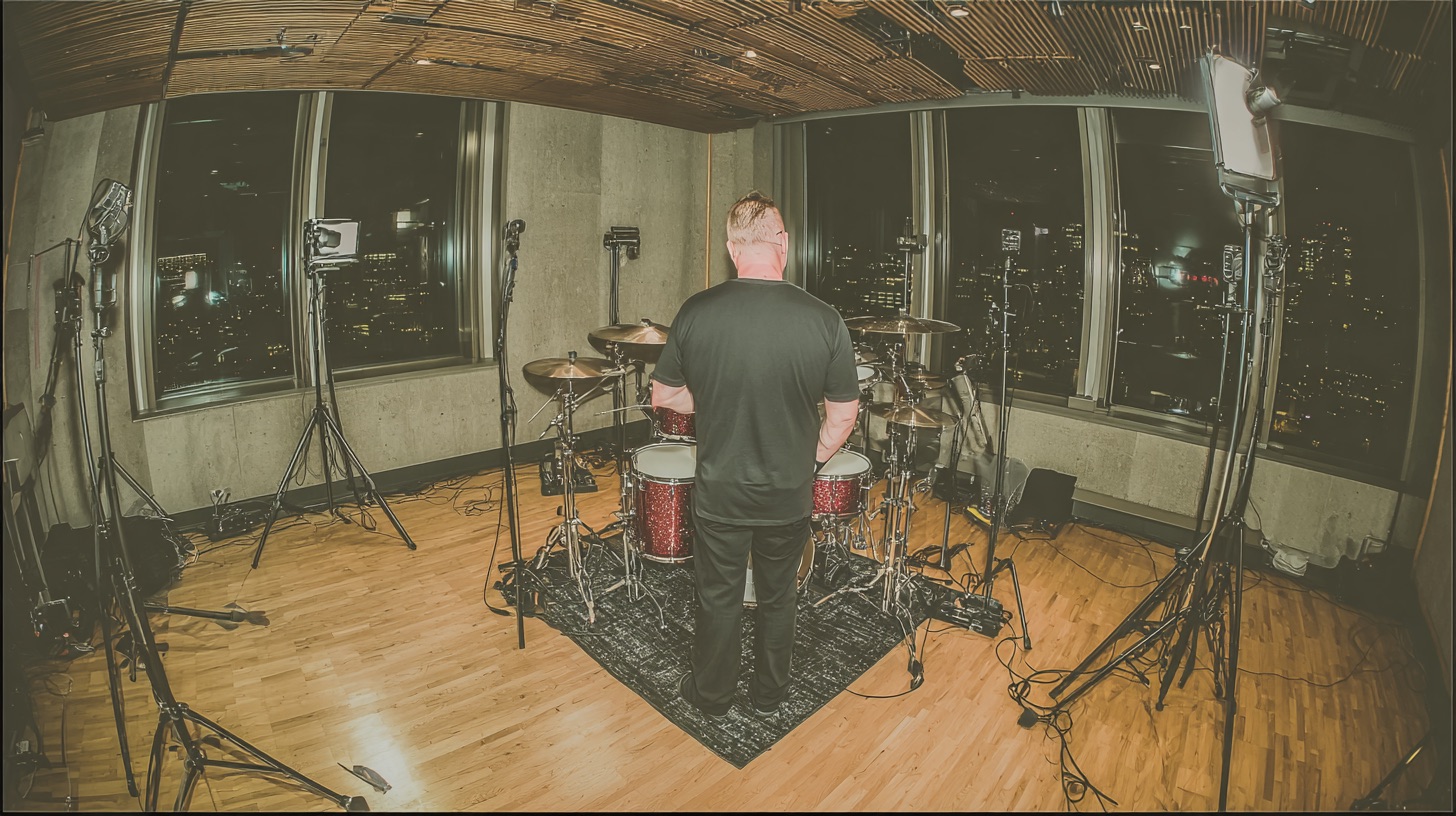
How To Edit Metal Drums in Pro Tools
Nail The Mix Staff
A raw, energetic drum performance is the backbone of any killer metal track. But even the best drummers aren't machines. To get that tight, punchy, modern metal sound, you need to get in there and edit. This isn’t about sucking the life out of a performance; it’s about enhancing the groove, tightening up the hits, and making sure every kick and snare smacks you right in the chest.
Forget basic quantizing. We’re diving into a professional-level workflow inside Pro Tools, covering everything from session prep to surgical manual edits and the power of Beat Detective. Whether you're cleaning up a few flams or locking in an entire song, these are the techniques the pros use.
Let's get to it.
Prep Your Session Like a Pro for Flawless Drum Editing
Before you move a single transient, a few minutes of setup will save you hours of headaches. A clean, organized session is a fast session.
Declutter Your Workspace
You don’t need to see every fader and plugin while you’re deep in editing mode. Tidy up your screen so you can focus on the waveforms.
- Hide Clip Names: Go to
View > Clipsand uncheckName. Waveforms are all you need to see. - Maximize Track Height: Select the tracks you’ll be focusing on (kick, snare, toms, overheads). Hide the rest for now (like room mics or a snare bottom track you don't need to reference visually). Then, hold
Shift + Optionand click the track height selector on one of the selected tracks. Choosefit to whole window. Now your key tracks are huge and easy to see. - Hide Inserts/Sends: Click the small view selector icon in the edit window toolbar and uncheck
Inserts,Sends, andInstruments. This gives you maximum vertical space for waveforms.
Set Up Smart Edit Groups
Edit Groups are your best friend for drum editing. They ensure that when you cut one track, you cut them all, keeping everything phase-aligned.
- Main Drum Group: Select all of your drum tracks and press
Command + Gto create a new group. Call it "Drums." This will be your main group for most edits. - "Hands" Group: Here’s a pro tip. Create a second group that includes everything except the kick drum. Select your snare, toms, and cymbal tracks, and press
Command + G. Call it "Hands." This is incredibly useful for fixing flams between the kick and snare/cymbals, which we'll get to later.
The Manual Method: Surgical Edits for Feel and Precision
For short sections or for maintaining a more human feel, manual editing is the way to go. This gives you total control over the groove.
The Core "Slice and Slip" Technique
This is the bread and butter of manual drum editing in Pro Tools.
- Identify: Find a hit that's off the grid.
- Separate: Place your cursor just before the transient of the hit you want to move and press
Command + Eto separate the clip. - Move: With the Smart Tool active, simply drag the new clip so the transient lines up perfectly with the grid line.
- Trim & Fade: Drag the end of the previous clip to meet the beginning of the clip you just moved. Make a selection over the cut and press
Fto create a quick crossfade.
To make this even faster, set up your default crossfade. Select any two clips and hit Command + F to open the Batch Fades window. Set the length to something short, like 3ms, and use Equal Power. Now, every time you hit F, you’ll get a perfect, click-free crossfade.
Level Up with the Nudge/Slip Function
Here’s where you can really speed things up. Instead of separating and dragging, you can slip the audio inside the clip boundaries.
Set your Nudge value in the toolbar to a small amount, like 1 or 3 milliseconds. Now, select a clip, hold Control, and use the Plus (+) and Minus (-) keys on your number pad to nudge the audio forward or backward within the clip. It’s perfect for making tiny adjustments without creating a ton of extra cuts.
Fixing Flams and Phase Issues
Ever notice the kick and snare are just slightly off from each other? This is where your "Hands" group is clutch.
- Disable your main "Drums" edit group by clicking on it in the Groups list (it will turn grey).
- Now you can select the kick drum clip independently of the rest of the kit.
- Use the slip function (
Control++/-) to nudge the kick perfectly in line with the snare. - Re-enable your main "Drums" group. Done.
A word of caution: if you move a kick too far, you might hear weird artifacts in the overheads where the kick bleed suddenly gets cut off. Use your ears, not just your eyes.
Beat Detective: The Heavy Hitter for Quantizing Drums
When you have a long, fast section that needs to be locked down tight, Beat Detective is your weapon of choice. It analyzes transients and slices your audio automatically, prepping it for quantization.
Step 1: Analysis and Triggering
First, you need to tell Beat Detective what to listen for.
- Disable Groups: Temporarily disable all groups by hitting
Shift + Command + G. - Select Triggers: Select the clips for the tracks with the clearest transients—usually the kick and snare top.
- Open Beat Detective: Hit
Command + 8(on the number pad). - Configure:
- Operation: Set to
Clip Separation. - Selection: Click
Capture Selection. - Analysis: Set to
Enhanced Resolutionand checkSub-Beats. Set yourTrigger Padto around3ms. - Detect: Adjust the
Sensitivityslider until you see trigger markers appear on all the kick and snare hits you want, without picking up too much noise.
- Operation: Set to
Step 2: Slicing the Entire Kit
This is the most important step. If you only slice the kick and snare, your drums will be a phase-y mess.
- Re-enable Groups: Hit
Shift + Command + Gagain to turn your groups back on. - Expand Selection: With your "Drums" group active, your selection on the kick/snare tracks will now apply to the whole kit.
- Separate: Back in the Beat Detective window, click
Separate. Pro Tools will now slice every drum track at the trigger points you defined.
Step 3: Post-Slice Cleanup
Beat Detective is powerful, but not flawless. Take a minute to scan through the results. You might need to delete a few cuts on false triggers or manually add a cut (Command + E) on a tom or cymbal hit that Beat Detective missed.
While you're here, it's the perfect time to adjust the volume of individual hits. If you see a tom fill where one hit is way quieter than the others, just select that single sliced clip and use Clip Gain (Control + Shift + Mouse Wheel Up/Down) to bring its level up before it even hits your plugins.
Quantizing and Finalizing Your Edits
You’ve sliced your drums. Now it's time to lock them to the grid.
Applying Quantization to Your Sliced Clips
- Select all the sliced drum clips you want to quantize.
- Open the Event Operations window (
Option + 0). - Set the following:
- Quantize: Choose
Audio Clips(not Elastic Audio). - Grid: Set to the finest subdivision in the part (usually
16th note). - Options: This is key for a human feel. Set Strength to around 90% and Exclude Within to 10%. This tells Pro Tools to move things closer to the grid but not perfectly, and to ignore hits that are already close enough.
- Quantize: Choose
- Click
Apply. You'll see all your clips snap into time, leaving small gaps between them.
Filling Gaps and Creating Fades
You can't leave those gaps, or your drums will sound gated and choppy.
- With all the quantized clips still selected, go to
Edit > Trim Clip > Start to Fill Selection(or use the shortcutControl + Option + F). This will fill all the gaps. - Finally, hit
Command + Fto open Batch Fades and hitOKto apply your default 3ms crossfade to every single cut.
With a few custom macros, you can even automate this entire quantize-fill-fade process down to a single keystroke.
The Final Steps: Commit and Consolidate
Your drums are edited, but your session is a minefield of tiny clips. It's time to clean up.
- Commit (If Needed): If you used any Elastic Audio for larger stretches, you need to commit it. Select the tracks, right-click the track name, and choose
Commit. - Duplicate Playlist: Create a backup of your hard work. With the "Drums" group active, click the playlist dropdown on any drum track and select
Duplicate. Now you have a safe copy of all your individual edits. - Consolidate: Go back to your main playlist. Select all the drum clips from the very beginning of the song to the very end. Hit
Shift + Option + 3to consolidate.
Pro Tools will render each track down to a single, clean audio file. Your session is now tidy, your CPU will thank you, and your drums are ready for mixing.
Beyond the Edit: Making Your Drums Punch
Getting your drums perfectly in time is a massive step, but it's just the beginning of crafting a powerful metal drum sound. Once your performance is locked in, the real fun begins.
The next step is to use creative EQ to make your kick and snare crack through the mix, carving out space and adding aggressive attack. After that, it's all about applying the right compression to add that essential punch and glue the kit together.
This kind of in-depth, start-to-finish workflow is exactly what we teach at Nail The Mix. Imagine seeing the actual producers behind bands like Gojira, Lamb of God, and Periphery not only edit their drums but then mix the entire song from scratch, explaining every single plugin and decision along the way.
Stop guessing and start mixing with confidence. See how the pros get their sound with Nail The Mix.
And if you want to dive even deeper, over 1,500 more tutorials just like this are waiting for you inside URM Enhanced, covering every possible production topic you can imagine.